




【Important】 Regarding “Feature-Limited Mode” When Using Older Versions of Office for Mac (July 13)
(Published: July 21, 2026)
In accordance with Microsoft's policy, starting July 13, 2026, if you are using older versions of macOS or Office for Mac apps (such as Word, Excel, and PowerPoint), you will see the message “Editing on Mac is not allowed”, and your device will enter “Functional Restriction Mode,” which limits editing, saving, and other actions.
Supported Versions of macOS and Office
- macOS 12 (Monterey) or earlier *You need macOS 14 or later to install the latest version of Office
- Office apps version 16.83 or earlier
How to Handle This
-
Please update macOS and Office.
-
If your version of Office is outdated and cannot be updated, please uninstall all installed Office apps and then install Microsoft 365 Apps.
Check Which Office Apps Can't Be Updated
-
Launch Word or Excel, and then click [Help] - [Word (or Excel) Help] on the menu bar.

-
If the message “This product is no longer supported” appears, you cannot update Office.
Please uninstall the Office apps and then reinstall the latest version.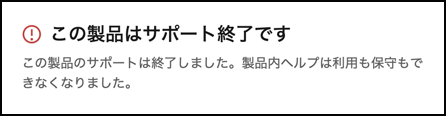
Steps to Uninstall Office Apps
-
Open Finder, then open the [Applications] folder.
-
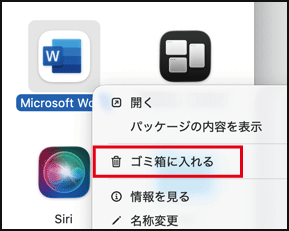
Click on an Office app (Word, Excel, PowerPoint, etc.) while holding down the Control key, then select [Move to Trash] to delete it.
Instructions for Installing the Latest Version of Office Apps
*You need macOS 14 or later to install the latest version of Office
-
Access Microsoft 365 in your browser and sign in with your Keio ID.
-
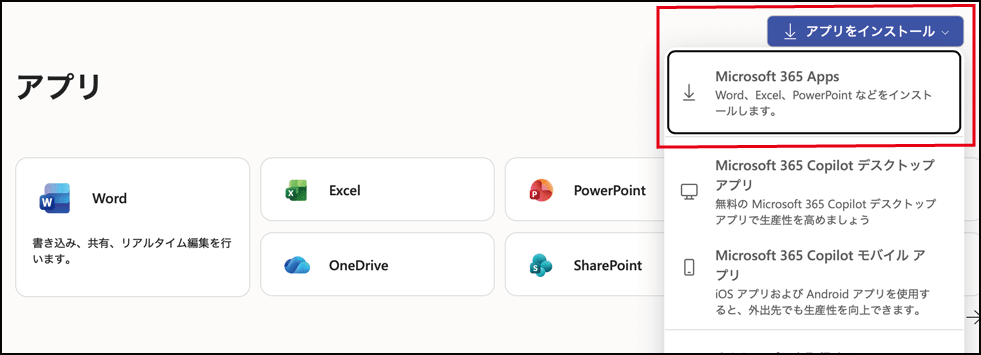
Click [Install Apps] - [Microsoft 365 Apps].
-
Click [Install Office] to download the installer.
One of the following will be displayed: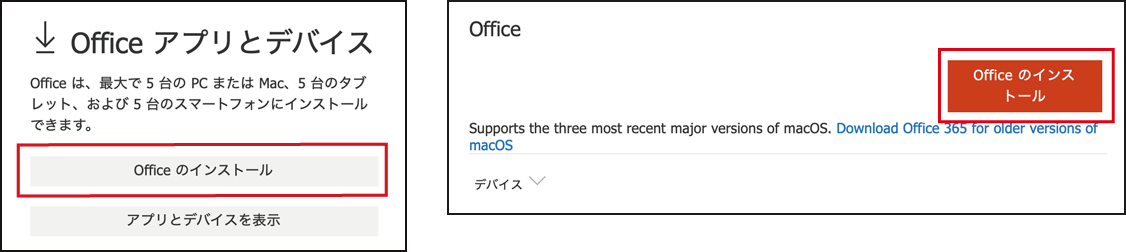
-
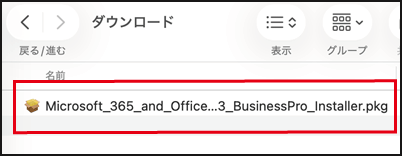
Double-click the downloaded installer to reinstall Office.
Last-Modified: July 24, 2026
The content ends at this position.