




- Top >
Changing Your ITC Account Password
-
To change your password, start a Web browser and access the following URL:
※Please note that access is restricted to the campus network. -
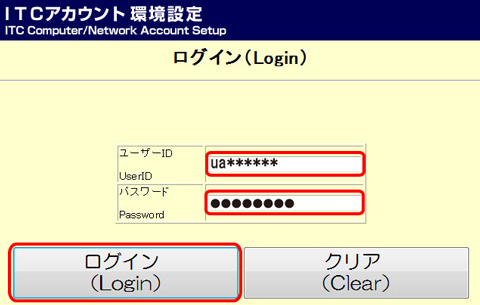
The "Login" window will appear. After entering your username and password, click the "Login" button.
-
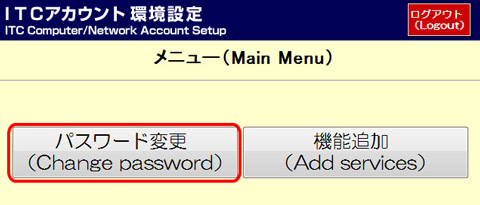
The "Main Menu" window will appear. Click the "Change Password" button.
-
The "Change Password" window will appear. After entering your "Current password", "New password", "New password (confirmation)", click the "OK" button.
To make your password secure and strong, it is recommended to include at least 12 characters, combining upper and lowercase letters, numbers, punctuation, and other symbols. It is also suggested to use a random password that is different from any others you use.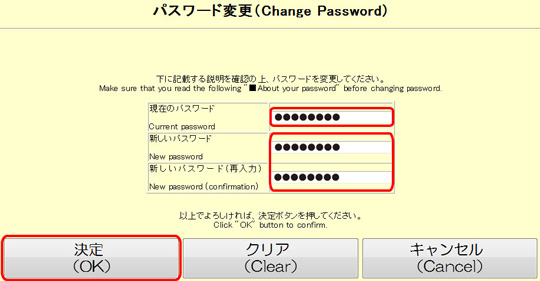
-
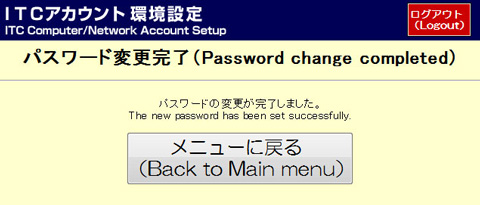
The "Password change completed" window will appear. Click the "Logout" button.
Last-Modified: October 28, 2026
The content ends at this position.